Linking your Microsoft Clarity account to your form
In the “Integrations” tab of your form, click on “Add” next to the “Microsoft Clarity” item.
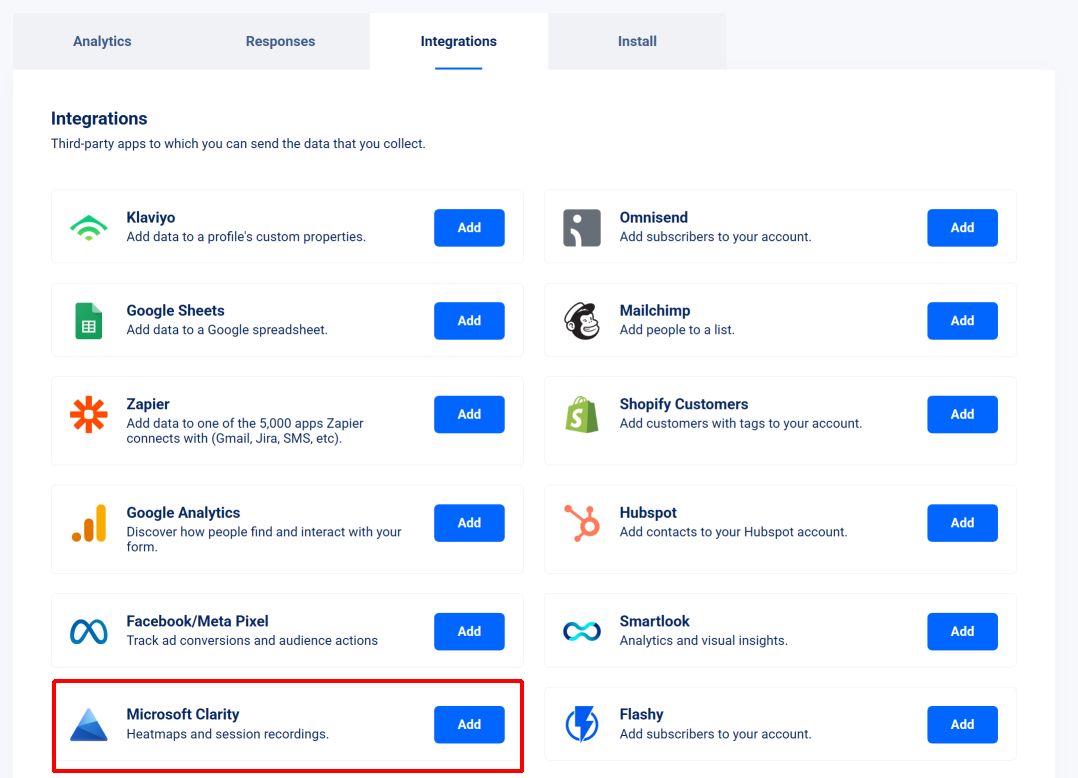
You’ll be asked for a “Project ID / Tracking Code ID”. To find it in Clarity, you have 2 options :
- You can go to “Settings > Overview” and copy the “Project ID”.

- Or you can go to “Getting Started > Install manually > Get tracking code”. From there, locate the ID at the very end of the Clarity code (cf screenshot below).
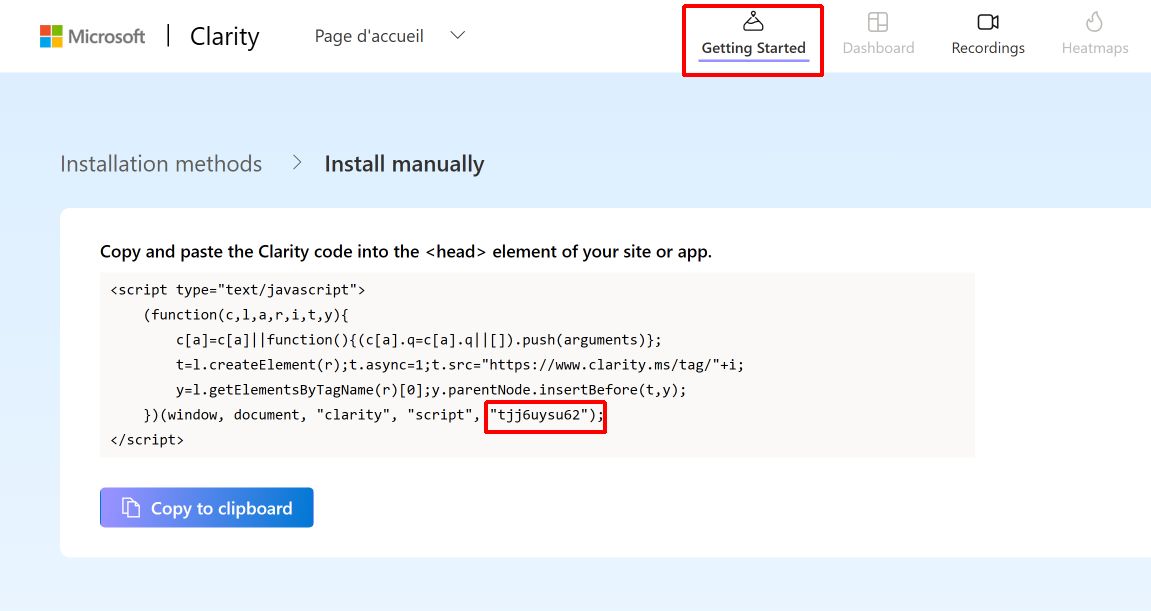
Paste the project ID (or tracking code ID) into the relevant field in VeeForm.
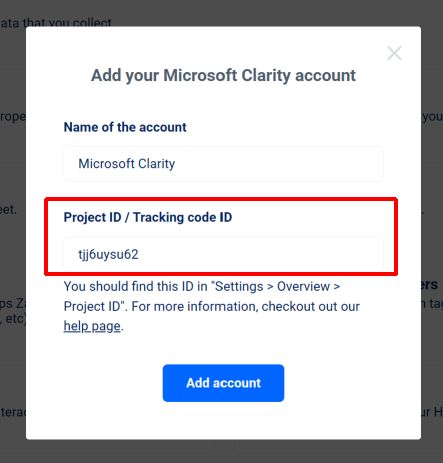
Click on “Add account”, then on “Save” and you should now see the following :
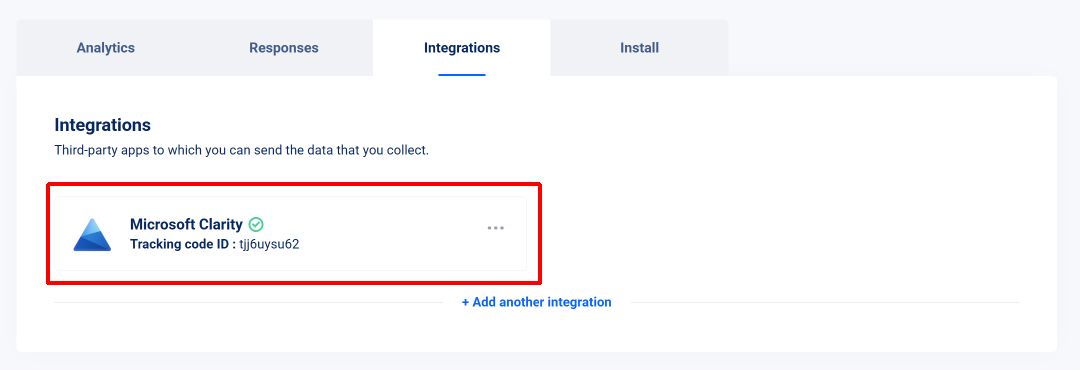
That’s it. Microsoft Clarity will be loaded on your quiz and will start recording sessions.